الفريق العربي للبرمجةأرشيف المنتديات · 2000 – 2023
نسخة أرشيفية للقراءة فقط — التسجيل والمشاركة مغلقان، والمحتوى محفوظ كما كان.

خاصية لربط Object ب Usercontrol

بدأه najy_zl في 6 يوليو 2008 · 5 رد · 865 مشاهدة · في لغة Ms Visual Basic 6 وما قبلها من إصدارات
مشاركة: واتساب X فيسبوك تيليجرام
#1 صاحب الموضوع

السلام عليكم...

بحثت عن هذا الموضوع في المنتدى، لكن رغم كثرة المواضيع عن الـ UserControl فإني لم أجد جواباً لسؤالي.

أقوم بتصميم UserControl و جعلت له خاصية لربطه بمكون آخر (Label)، كما في الكود التالي:

  1. Private FLinkedLabel As Label
  2. '
  3. '
  4. Public Property Get LinkedLabel() As Control
  5. Set LinkedLabel = FLinkedLabel
  6. End Property
  7.  
  8. Public Property Set LinkedLabel(ByVal vNewValue As Control)
  9. ' كود محذوف للتحقق من صحة المكون الممرر
  10. Set FLinkedLabel = vNewValue
  11. PropertyChanged "LinkedLabel"
  12. End Property
  13.  

البرنامج لا يعترض على الكود لكن المشكلة أن الخاصية LinkedLabel لا تظهر في نافذة الخصائص مع أن الخصائص الأخرى (من نوع String مثلاً) تظهر.

نرجو إفادتنا و لكم جزيل الشكر.... و السلام.

وَ قُلِ اعْمَلُوا فَسَيَرَى اللهُ عَمَلَكُمْ وَ رَسُولُهُ وَ الْمُؤْمِنُونَ

صدق الله العظيم

#2

هذا يا اخى لانها من نوع object هناك انواع محدودة يتم عرضها فى شاشة الخصائص

لى عودة ان شاء الله

موقع البرنامج

مبارك لشعب تونس photo-thumb-42837.png

#3

السلام عليكم...

عودة مرة أخرى!

بعد بحث موسع بعض الشيء في الإنترنت تبين لي (أو هذا ما توصلت إليه حتى الآن) أن ذلك غير ممكن في VB لأنها لا تملك الواجهات (Interfaces) اللازمة لعرض الخصائص من النوع Object إلا في حالات محدودة مثل الـ Picture و الـ Font.

النص التالي هو جزء من مقال يتحدث عن نفس المسألة:

Usercontrols don't have the required interfaces to allow them to show objects in the property window

لكن أتمنى أن يكون لدى الإخوة بالمنتدى حلاً (ربما عبقرياً) فيساعدنا به!

و السلام.

وَ قُلِ اعْمَلُوا فَسَيَرَى اللهُ عَمَلَكُمْ وَ رَسُولُهُ وَ الْمُؤْمِنُونَ

صدق الله العظيم

#4

- هل هناك إمكانية جعلها في PropertyPage , مثل مثلا أداة ToolBar , حيث يمكنك من خلال الخاصية Custom عرض PropertyPage الخاص بها , وتحديد أي أداة ImageList من القائمة الخاصة بها

- أو إنك تقوم بعمل الخاصية من النوع String ويوضع فيها من خلال أمر Enum أو من خلال دوارة أسماء Labels حيث يتم دوران على الأدوات في النموذج ووضع أسماء الأدوات Label في قائمة

اقتباس
If A is success in life, then A equals x plus y plus z. Work is x; y is play; and z is keeping your mouth shut

Albert Einstein

مدخل إلى برمجة وتصميم الألعاب : كيف أبدأ ؟

#5

السلام عليكم...

الشكر الجزيل للأخ "Ala2 VB" الذي ذكرني باستخدام الـ PropertyPages. و لقد أمضيت ساعات لتطبيق الأمر، و قد نجح بشكل كبير. و للفائدة فإني سأشرحه هنا بشيء من التفصيل مع ملاحظة أني وضعت التوضيحات ضمن الكود باللغة الإنجليزية حتى لا تبدو بعض التوضيحات ملخبطة إذا تكونت من كلمات عربية و إنجليزية.

لتجربة الأمر:

1. افتح مشروع جديد من نوع Standard Exe. ستكون لدينا بشكل افتراضي Form1.

2. أضف إلى المشروع UserControl و اترك اسمه كما هو (UserControl1). أضف إليه Label (اترك اسمه Label1) و اضبط الخاصية Caption للـ Label على "UserControl" (أو لأي نص آخر).

post-28631-1215489669_thumb.jpg

3. أضف إلى المشروع PropertyPage و اترك اسمها كما هو (PropertyPage1). اضبط الخاصية Caption على "General" و الخاصية StandardSize على Large.

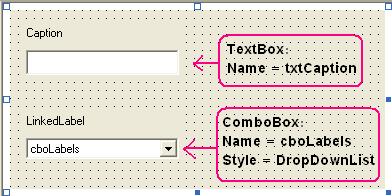
4. أضف للـ PropertyPage المكونات المبينة في الصورة التالية:

post-28631-1215489620_thumb.jpg

5. عد إلى الـ UserControl و اختر الخاصية PropertyPages. من النافذة التي ستم عرضها اختر PropertyPage1 و كذلك الخيار StandardColor، و تأكد من وجود PropertyPage1 في البداية (استعمل سهم الرفع للأعلى إذا لم تكن كذلك)، ثم انقر الزر OK.

post-28631-1215491127_thumb.jpg

6. اكتب الكود التالي للـ UserControl:

  1. Option Explicit
  2.  
  3. ' ======== Private Members (Holding Property Values) ============
  4. Private FLinkedLabel As Label ' Linked label
  5.  
  6. ' =============== Private Variables for internal use =============
  7. Private ALinkedLabelColor As OLE_COLOR
  8. Private ALinkedLabelName As String
  9.  
  10. ' ============== Private Subs and Functions ==================
  11. ' SUB CheckObjectReference:
  12. ' Check if the linked label still exists, otherwise it may be deleted or renamed.
  13. Private Sub CheckObjectReference()
  14. Dim AnyVar As String
  15. ' A simple idea is just to try to reference the linked label using an Error Trap!
  16. ' If it is still present, no error will happen.
  17. ' If not present, error happens, so set the holding var to Nothing.
  18. On Error GoTo CheckObjectReference_Error
  19.  
  20. AnyVar = FLinkedLabel.Name
  21. ' At this point: No error -> Label still present.
  22.  
  23. Exit Sub
  24. CheckObjectReference_Error:
  25. ' If we got here, Label not present any more -> set to Nothing:
  26. Set FLinkedLabel = Nothing
  27. Err.Clear
  28. End Sub
  29.  
  30. ' Save the required properties of the linked label:
  31. Private Sub UserControl_WriteProperties(PropBag As PropertyBag)
  32. CheckObjectReference
  33. If FLinkedLabel Is Nothing Then
  34. PropBag.WriteProperty "LinkedLabelName", ""
  35. PropBag.WriteProperty "LinkedLabelColor", vbBlack
  36. Else
  37. PropBag.WriteProperty "LinkedLabelName", FLinkedLabel.Name
  38. PropBag.WriteProperty "LinkedLabelColor", FLinkedLabel.BackColor
  39. End If
  40. End Sub
  41.  
  42. ' Load the required properties of the linked label (previously saved for the UserControl):
  43. Private Sub UserControl_ReadProperties(PropBag As PropertyBag)
  44. ' We DO NOT reference the linked label here because it may not be yet created.
  45. ' This procedure occurs BEFORE the Load event of the containing form.
  46. ALinkedLabelName = PropBag.ReadProperty("LinkedLabelName", "")
  47. ALinkedLabelColor = PropBag.ReadProperty("LinkedLabelColor", vbBlack)
  48. End Sub
  49.  
  50. ' This is the best place to set properties of the linked label.
  51. ' BUT it occurs ONLY AT DESIGN-TIME of the application containing the UserControl.
  52. ' So we added later a method (public Sub) to call it at Run-time of the containing app.
  53. Private Sub UserControl_Show()
  54. Dim Ctl As Control
  55.  
  56. Set FLinkedLabel = Nothing
  57. If ALinkedLabelName <> "" Then
  58. ' Loop through the controls in the containing from to find the linked label:
  59. For Each Ctl In Extender.Parent.Controls
  60. If (TypeOf Ctl Is Label) And (Ctl.Name = ALinkedLabelName) Then
  61. ' Linked label found:
  62. Set FLinkedLabel = Ctl
  63. Exit For
  64. End If
  65. Next Ctl
  66. End If
  67.  
  68. If Not (FLinkedLabel Is Nothing) Then
  69. ' Set properties of the linked label:
  70. FLinkedLabel.BackColor = ALinkedLabelColor
  71. 'PropertyChanged "LinkedLabelColor"
  72. End If
  73. End Sub
  74.  
  75. ' ==================== Properties =======================
  76. '
  77. ' This is a special property. Note that it is Private, so can not be seen by the developer
  78. ' using the control.
  79. ' It is used only to save (and restore) the name of linked label to the PropertyBag at
  80. ' WriteProperties and ReadProperties procedure:
  81. Private Property Get LinkedLabelName() As Variant
  82. CheckObjectReference
  83. If FLinkedLabel Is Nothing Then
  84. LinkedLabelName = ""
  85. Else
  86. LinkedLabelName = FLinkedLabel.Name
  87. End If
  88. End Property
  89.  
  90. ' Property to access the linked label:
  91. Public Property Get LinkedLabel() As Object
  92. CheckObjectReference
  93. Set LinkedLabel = FLinkedLabel
  94. End Property
  95.  
  96. ' Property to set the linked label:
  97. Public Property Set LinkedLabel(ByVal vNewValue As Object)
  98. Set FLinkedLabel = vNewValue
  99. PropertyChanged "LinkedLabel"
  100. PropertyChanged "LinkedLabelName"
  101. End Property
  102.  
  103. ' Property to access the linked label color (BackColor):
  104. Public Property Get LinkedLabelColor() As OLE_COLOR
  105. CheckObjectReference
  106. If FLinkedLabel Is Nothing Then
  107. LinkedLabelColor = vbBlack
  108. Else
  109. LinkedLabelColor = FLinkedLabel.BackColor
  110. End If
  111. End Property
  112.  
  113. ' Property to set the linked label color (BackColor):
  114. Public Property Let LinkedLabelColor(ByVal ANewColor As OLE_COLOR)
  115. CheckObjectReference
  116. If Not (FLinkedLabel Is Nothing) Then
  117. FLinkedLabel.BackColor = ANewColor
  118. PropertyChanged "LinkedLabelColor"
  119. End If
  120. End Property
  121.  
  122. Public Property Get Caption() As String
  123. Caption = Label1.Caption
  124. End Property
  125.  
  126. Public Property Let Caption(ByVal vNewValue As String)
  127. Label1.Caption = vNewValue
  128. PropertyChanged "Caption"
  129. End Property
  130.  
  131. ' This is a read only, run-time only property to get access to the parent (containing form)
  132. ' of the UserControl:
  133. Public Property Get Parent() As Object
  134. Set Parent = Extender.Parent
  135. End Property
  136.  
  137. ' ====================== Methods =======================
  138. ' This method is required to call the UserControl_Show procedure at reun time of the
  139. ' hosting application. It must be called in the Load event handler of the containing from:
  140. Public Sub RefreshObjects()
  141. UserControl_Show
  142. End Sub
  143.  

7. أغلق نافذة تصميم الـ UserControl لكي يصبح في وضعية التشغيل. إذا نظرت الآن إلى صندوق الأدوات (ToolBox) ستجد في آخره رمزاً جديداً باسم UserControl1.

8. اكتب الكود التالي للـ PropertyPage:

  1. Option Explicit
  2.  
  3. Private LabelsCollection As Collection
  4.  
  5. ' Changing the linked label:
  6. Private Sub cboLabels_Click()
  7. Changed = True ' Enable "Apply" button
  8. End Sub
  9.  
  10. ' SUB ApplyChanges, Executed when:
  11. ' = "Apply" button clicked.
  12. ' = "OK" button clicked.
  13. ' = Change to an other page (tab) in the PropertyPages dialog.
  14. Private Sub PropertyPage_ApplyChanges()
  15. SelectedControls(0).Caption = txtCaption.Text
  16. If cboLabels.ListIndex = 0 Then
  17. Set SelectedControls(0).LinkedLabel = Nothing
  18. Else
  19. Set SelectedControls(0).LinkedLabel = LabelsCollection(cboLabels.Text)
  20. End If
  21. ' It automatically sets Changed property of the PropertyPage to False.
  22. End Sub
  23.  
  24. ' Occurs the first time the PropertyPages dialog shown, and every time the selected
  25. ' control(s) change:
  26. Private Sub PropertyPage_SelectionChanged()
  27. Dim Ctl As Control
  28.  
  29.  
  30. txtCaption.Text = SelectedControls(0).Caption
  31.  
  32. ' Set the Collection used to keep label objects on the parent form:
  33. Set LabelsCollection = Nothing
  34. Set LabelsCollection = New Collection
  35. ' Clear the ComboBox that contains the label names:
  36. cboLabels.Clear
  37. ' Add an empty item for removing the linked label:
  38. cboLabels.AddItem ""
  39. cboLabels.ListIndex = 0
  40. ' Loop through the parent form controls to find labels and add their names to the
  41. ' ComboBox, and add them (as objects) to the collection:
  42. For Each Ctl In SelectedControls(0).Parent.Controls
  43. If TypeOf Ctl Is Label Then
  44. cboLabels.AddItem Ctl.Name
  45. ' If this is the label linked to the UserControl, select it in the ComboBox:
  46. If Not (SelectedControls(0).LinkedLabel Is Nothing) Then
  47. If Ctl.Name = SelectedControls(0).LinkedLabel.Name Then
  48. cboLabels.ListIndex = cboLabels.NewIndex
  49. End If
  50. End If
  51. ' Add the label object to the collection:
  52. LabelsCollection.Add Ctl, Ctl.Name
  53. End If
  54. Next Ctl
  55.  
  56. Changed = False ' Disable "Apply" button at first show.
  57. End Sub
  58.  
  59. Private Sub PropertyPage_Terminate()
  60. Set LabelsCollection = Nothing ' Release the collection object.
  61. End Sub
  62.  
  63. Private Sub txtCaption_Change()
  64. Changed = True ' Enable "Apply" button
  65. End Sub
  66.  

9. عد إلى Form1 و أضف إليها مجموعة من الـ Labels و زر أمر (Command1) مع مكونات أخرى. أضف كذلك المكون UserControl1.

post-28631-1215489707_thumb.jpg

10. اكتب الكود التالي للـ Form1:

  1. Option Explicit
  2.  
  3. Private Sub Command1_Click()
  4. ' Changing some property of the label linked to our UserControl:
  5. UserControl11.LinkedLabelColor = vbYellow
  6. End Sub
  7.  
  8. Private Sub Form_Load()
  9. ' We need to call the RefreshObjects method of the UserControl to set the properties
  10. ' of the linked label. This must be done in the Form_Load procedure:
  11. UserControl11.RefreshObjects
  12. End Sub
  13.  

11. حدد الـ UserControl1 على الـ Form ثم اضغط المفتاح F4 لعرض نافذة الخصائص. من بين الخصائص ستجد الخاصيتين Custom و LinkedLabelColor.

post-28631-1215489721_thumb.jpg

12. انقر على زر الخاصية Custom لعرض الـ PropertyPages الخاصة بالـ UserControl1. ستلاحظ أن نافذة الحوار تحتوي على صفحتين (Tabs) الآولى باسم General، و هي الصفحة التي قمنا بتصميمها و ضبطنا الخاصية Caption لها على General، و الثانية للألوان (لأننا اخترنا StandardColor عند ربط الـ UserControl بالـ PropertyPages).

post-28631-1215489642_thumb.jpg

13. افتح قائمة الـ LinkedLabel (في الصفحة General) ستجد بها أسماء الـ Labels الموجودة على الـ Form1. اختر أحد الـ Labels ثم انقر الزر OK.

14. الآن إذا غيرت قيمة الخاصية LinkedLabelColor للـ UserControl سيتم تغيير لون الـ Label الذي تم ربطه مع الـ UserControl1.

15. قم بتشغيل البرنامج و انقر الزر Command1.

======================================

ملاحظات:

أ. الأكواد السابقة تعمل بشكل صحيح عند تحديد UserControl واحد على الـ Form، و سنجري في مشاركة قادمة إن شاء الله تعديلات على الكود للتعامل مع أكثر من UserControl واحد محددة معاً.

ب. إذا أغلقت المشروع و أعدت فتحه فإنك تحتاج إلى إعادة ضبط الخصائص المتعلقة بالـ LinkedLabel لأن الكود يحتاج إلى بعض الإضافة التي لم أجد لها الوقت الكافي، و سيتم تعديلها في المشاركة القادمة أيضاً إن شاء الله.

نرجو الاستفادة و السلام.

وَ قُلِ اعْمَلُوا فَسَيَرَى اللهُ عَمَلَكُمْ وَ رَسُولُهُ وَ الْمُؤْمِنُونَ

صدق الله العظيم

#6
اقتباس
أو من خلال دوارة أسماء Labels حيث يتم دوران على الأدوات في النموذج ووضع أسماء الأدوات Label في قائمة

نعم هذا هو ما كنت اقصده

وماجى استخدمها لكن كان يجب ان تفتح موضوع منفصل للدرس افضل لبقية الاعضاء يمكنك ان تنقله وشكرا

موقع البرنامج

مبارك لشعب تونس photo-thumb-42837.png

مواضيع مشابهة